Appearance
How to set up HaloPSA Integration with KIT.domains
This guide explains how to set up an API key in HaloPSA for integration with KIT.domains.
Part 1 – Setting up an API in HaloPSA
TIP
If you already have HaloPSA app credentials, start with Part 2:
Step 1: Log in to HaloPSA
Log in to HaloPSA and navigate to Advanced. From the dashboard, go to Integrations.
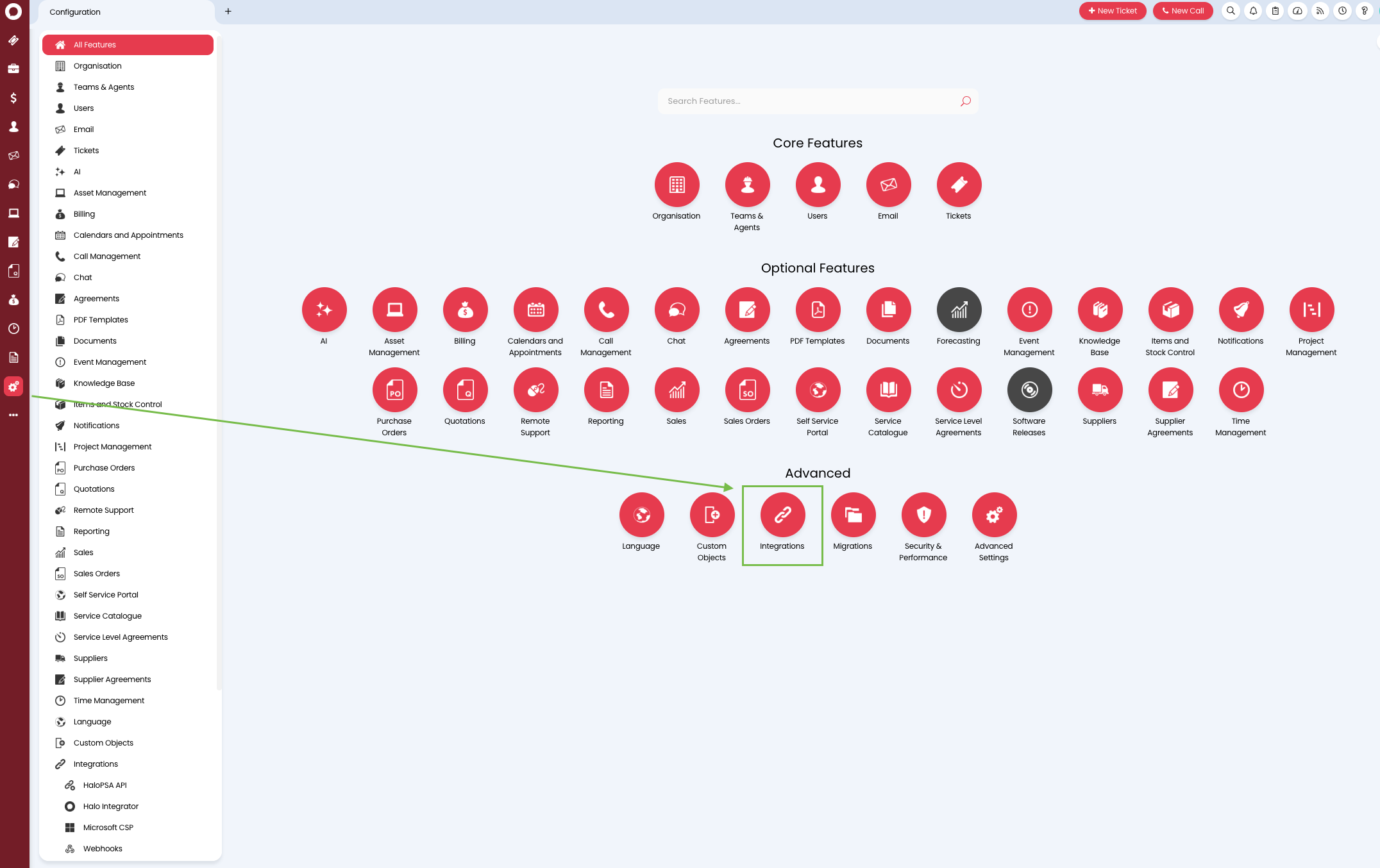
Step 2: Click HaloPSA API
Click HaloPSA API to access the API settings.
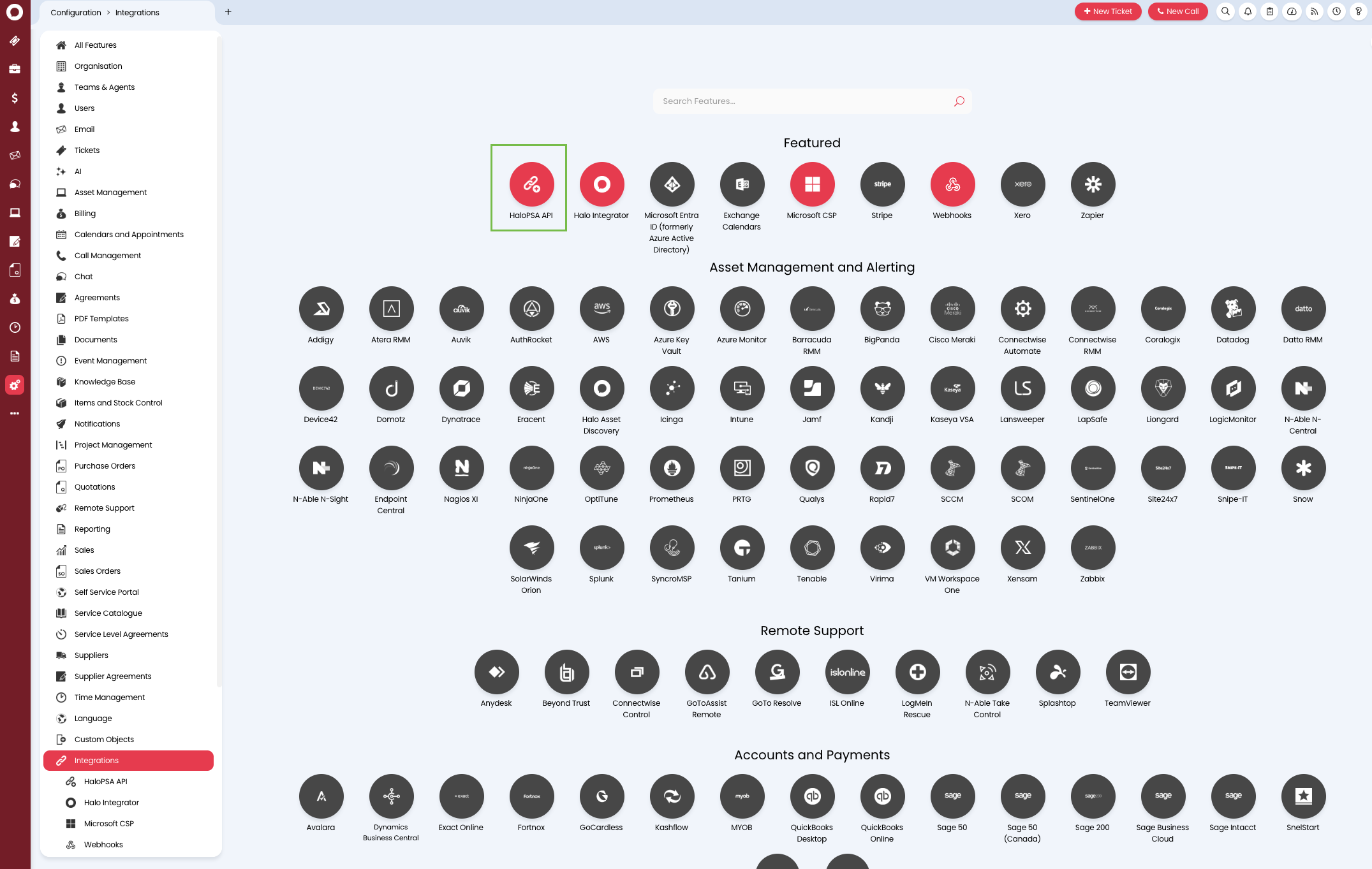
Step 3: HaloPSA to KIT.domains API Mapping
- Resource Server URL maps to Resource Server URL in Step 10
- Authorization Server maps to Authorization Server URL Step 10
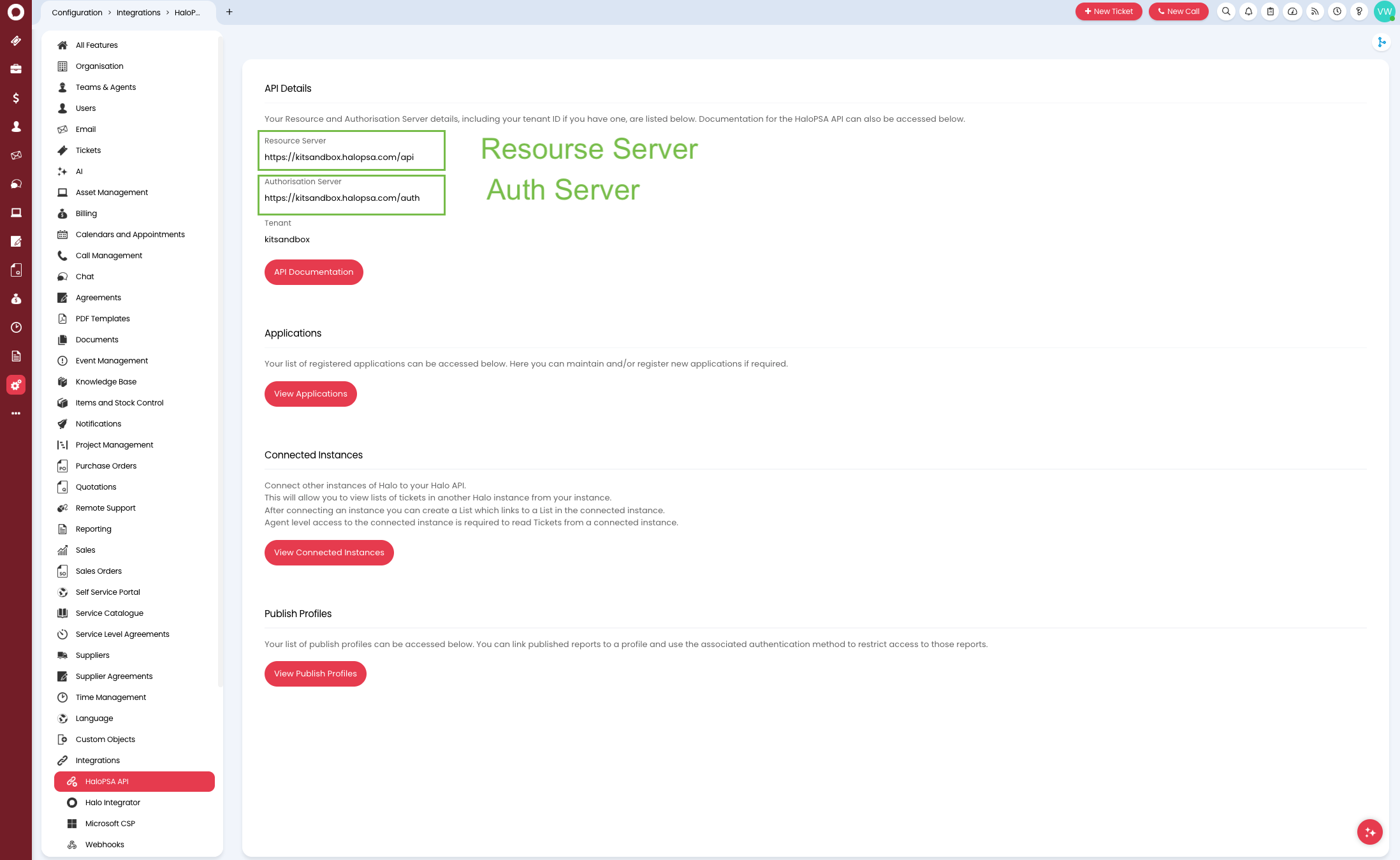
Step 4: View Applications
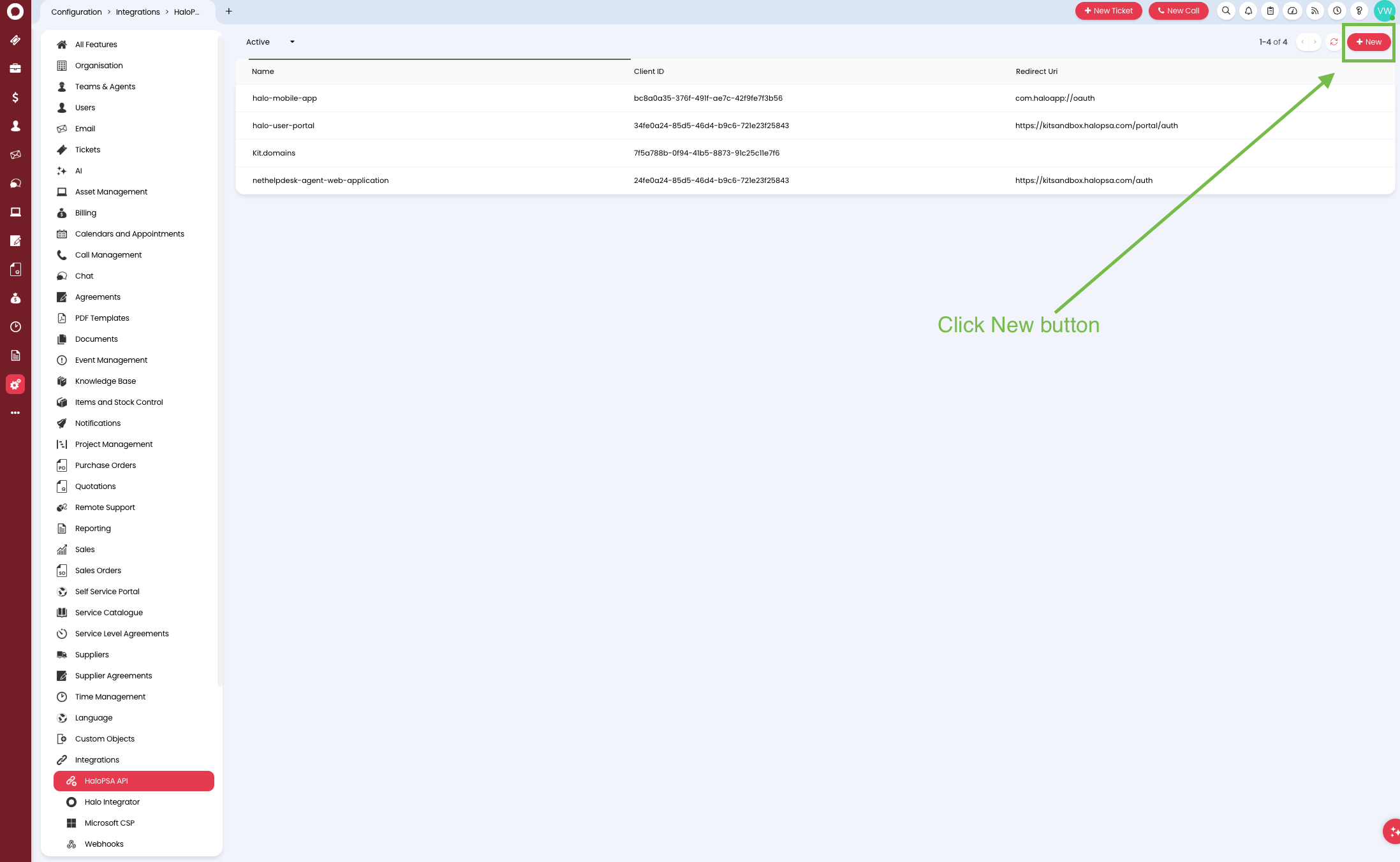
In the Applications section, click View Applications.
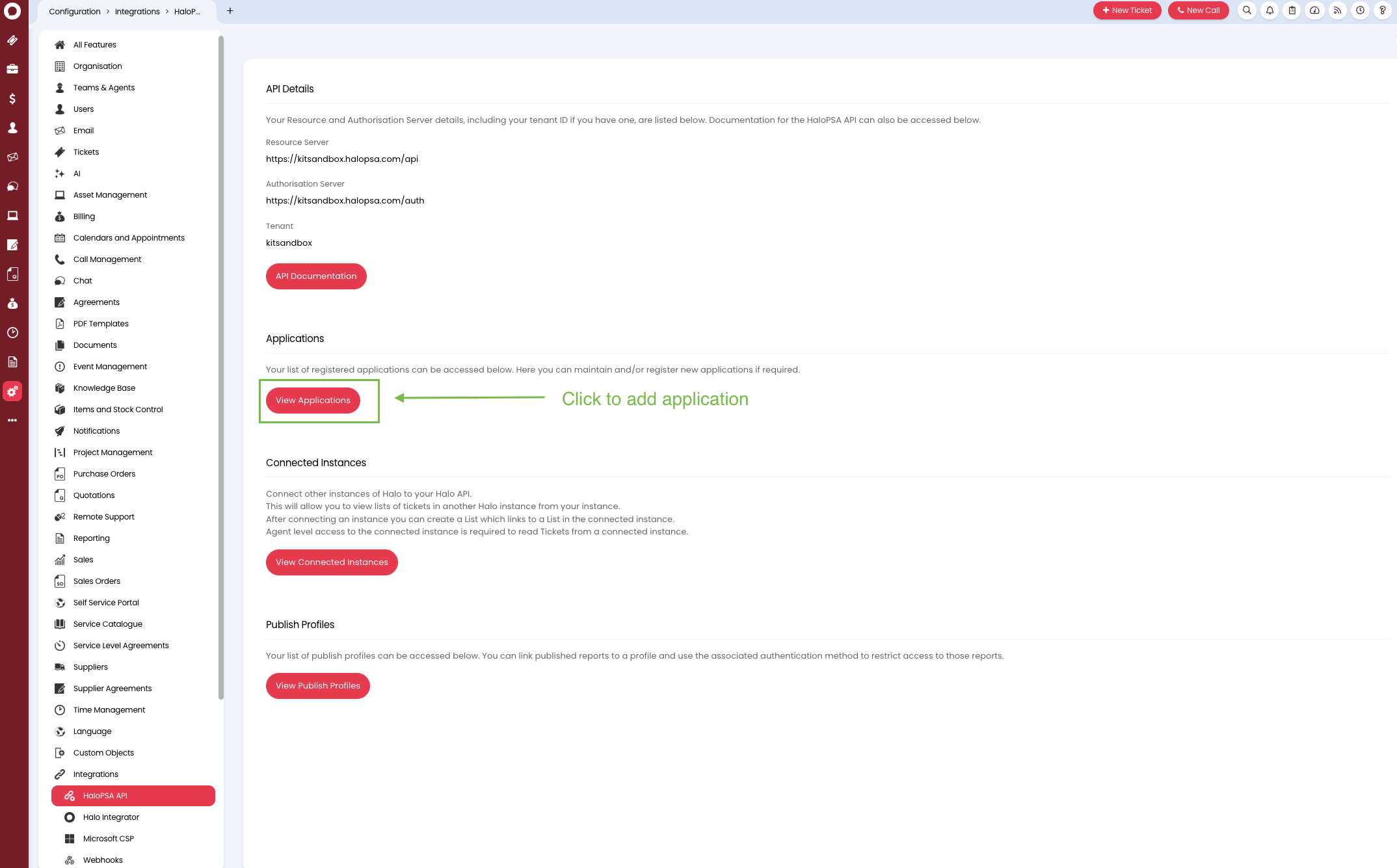
Step 5: Create a New Application
Create a new application and name it KIT.domains.
Step 6: Build the Application
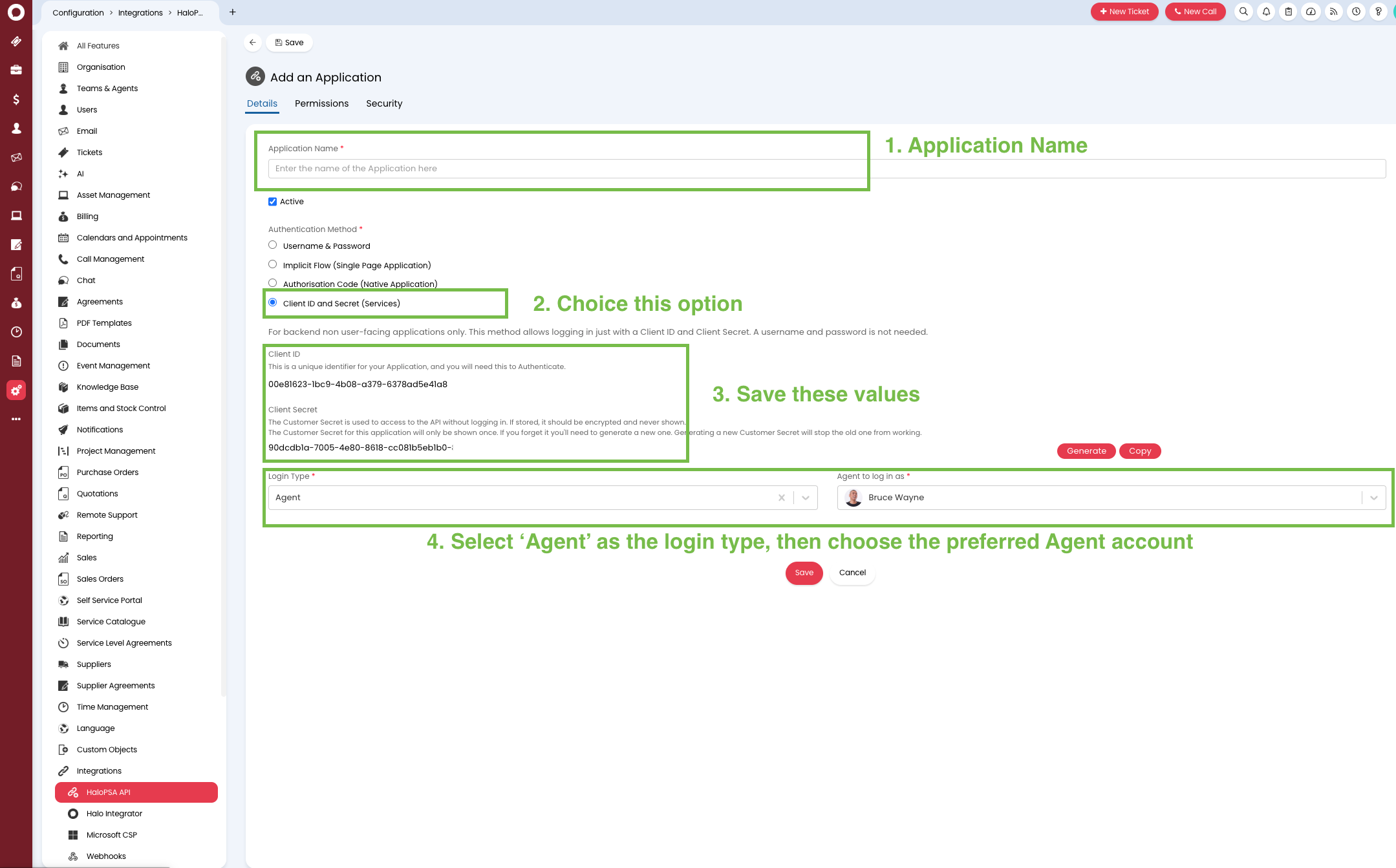
- Give the Application a Name (suggested:
KIT.domains) - Choose Client ID and Secret — this generates the Client ID and Secret. Record these values for use in KIT.domains.
- Choose Agent and then select the Agent account to be used with the API.
Step 7: Edit Permissions
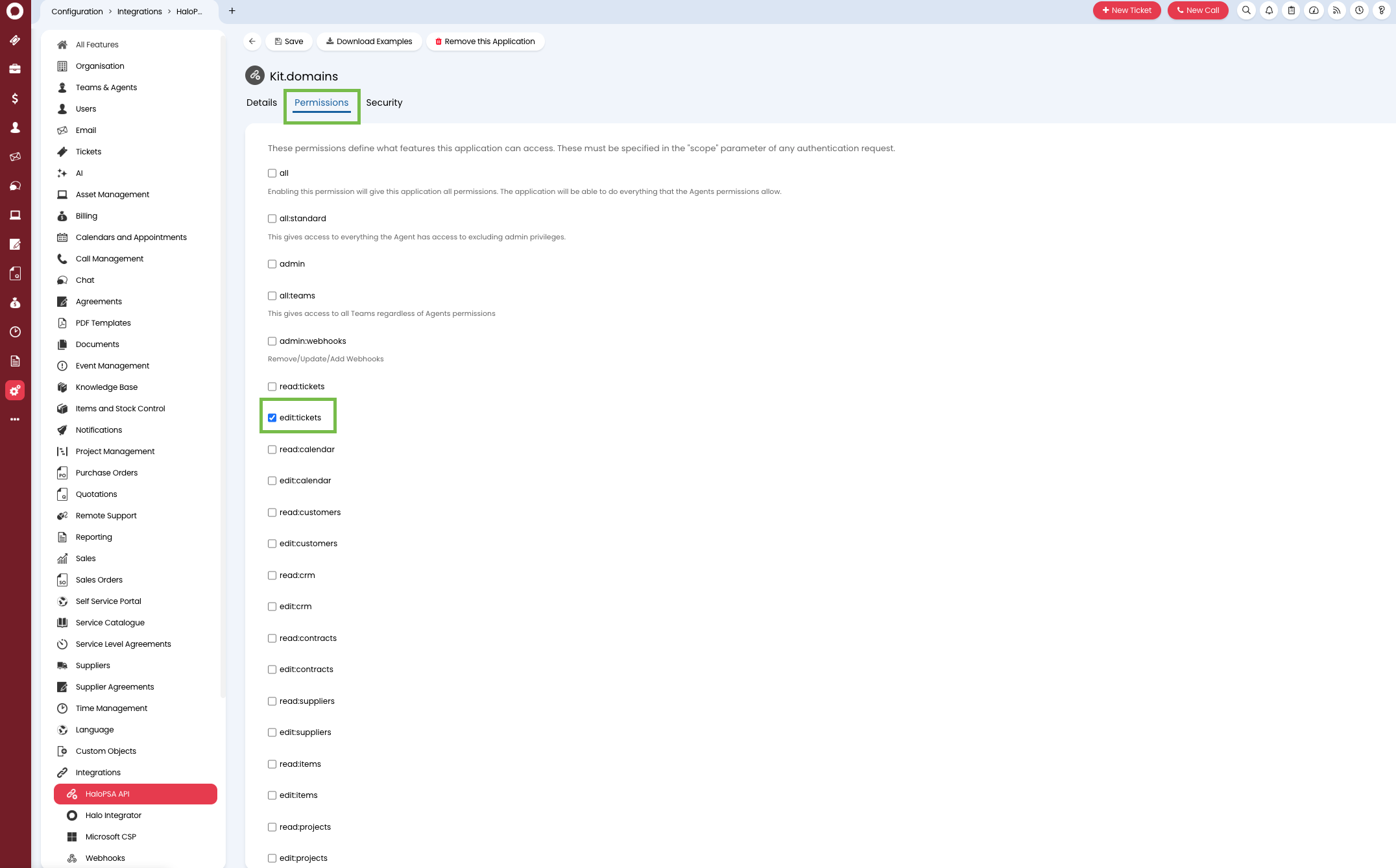
Go to the Permissions tab to edit permissions for this application.
Step 8: Enable Required Permissions
The following permissions must be enabled to use the API:
Edit:tickets
The API key is now ready to use with KIT.domains.
Part 2 – Setting up an API in KIT.domains
Step 9: Open HaloPSA integration form
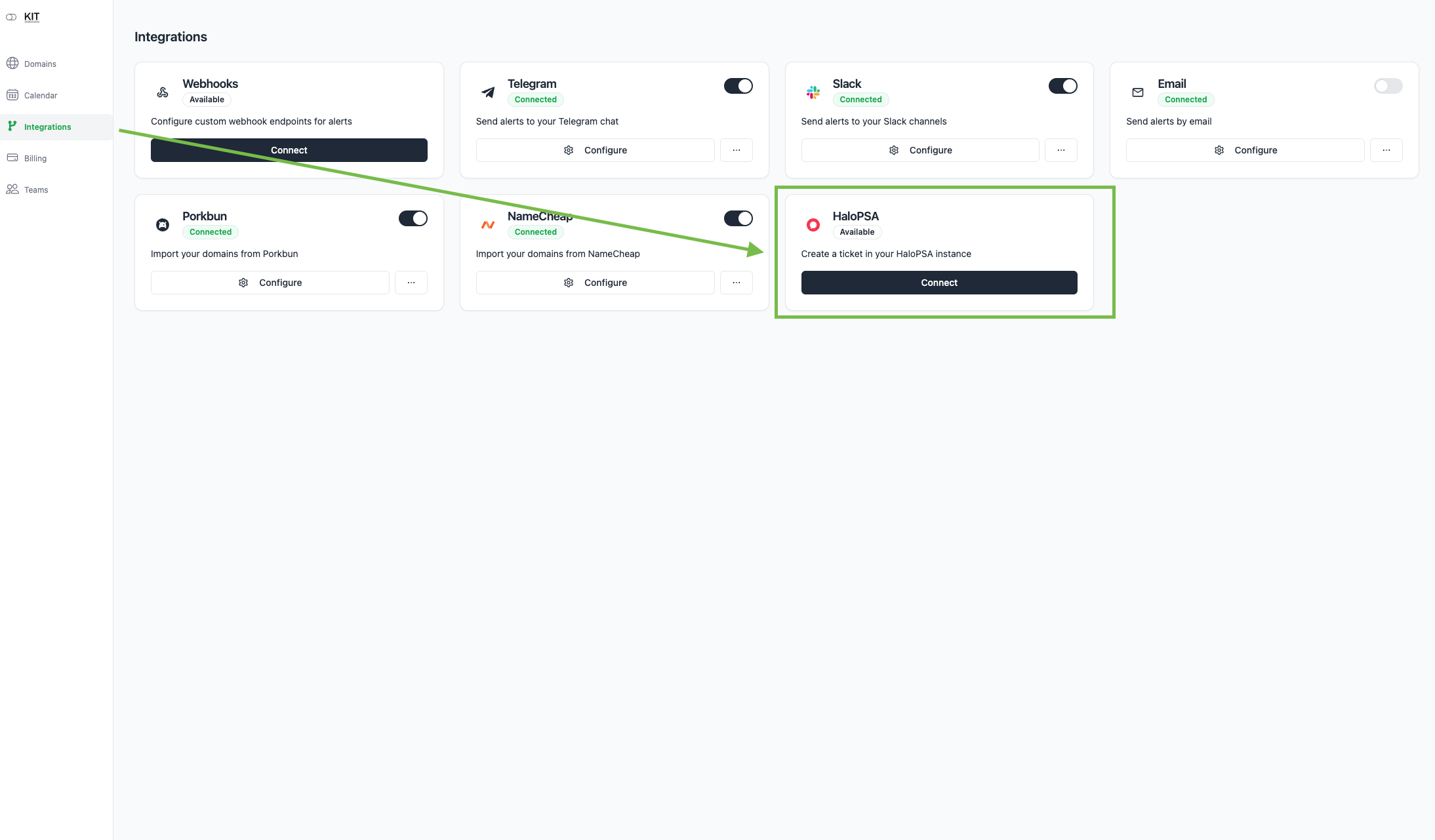
Go to the Integrations tab and click Connect on HaloPSA integration.
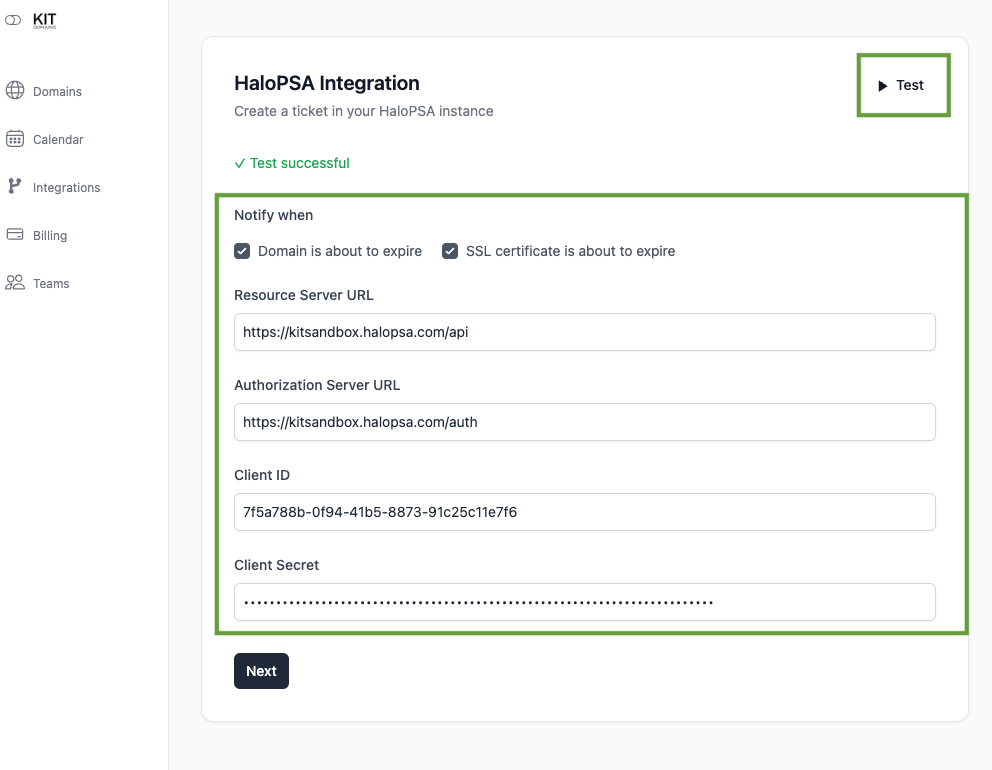
Step 10: Provide credentials
Paste the following values from Step 3 and Step 6:
Resource Server URLAuthorization Server URLClient IDClient Secret
Then click Next. Optionally, click the Test button to check the connection.
Step 11: Choose necessary options
Choose
CategoryTicket TypeImpactUrgency
Click Update.
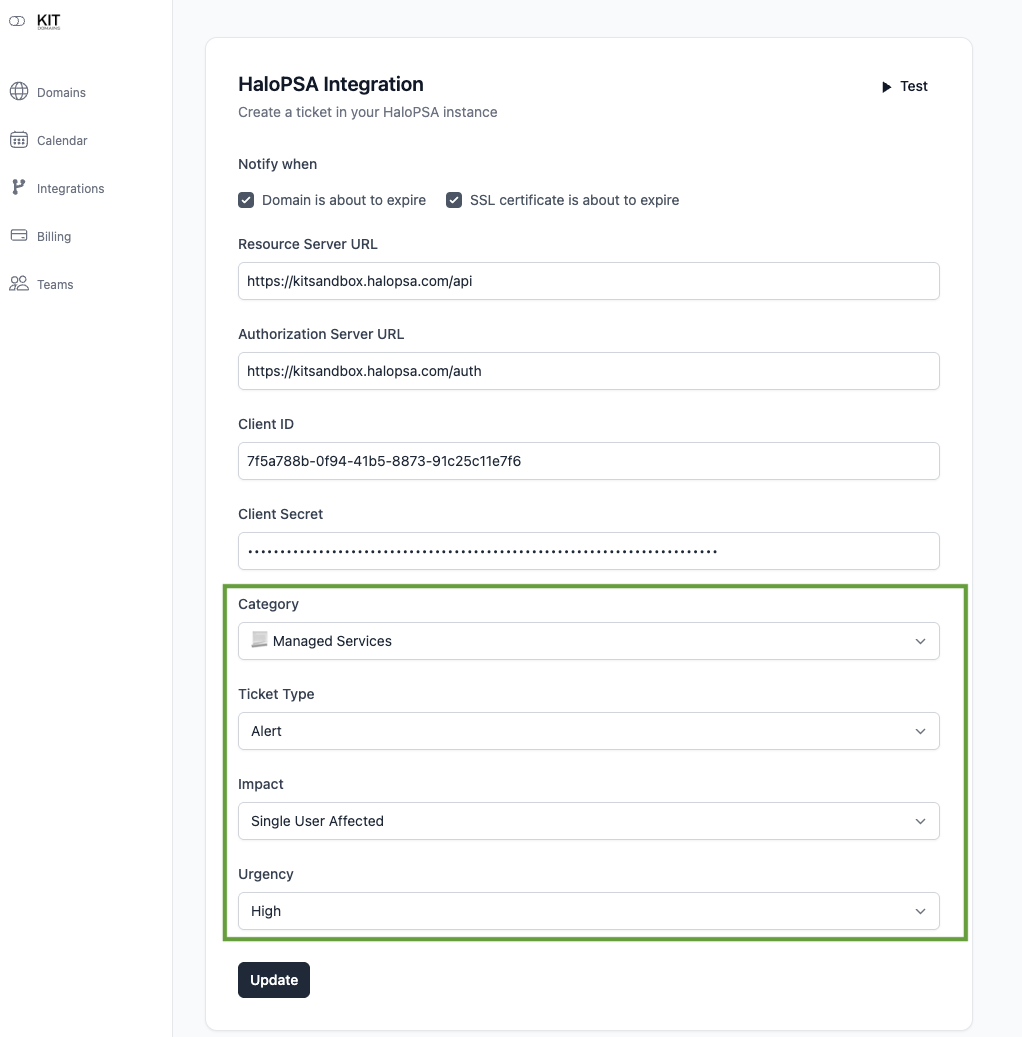
Done! As soon as KIT.domains detects a domain or an SSL expiration issue, it will create a ticket inside HaloPSA with the options you chose.